Bookkeeping & Exact1 min read
Find and add client documents
Search a client’s files, check processing status and upload documents from the portal.
Open the client’s documents
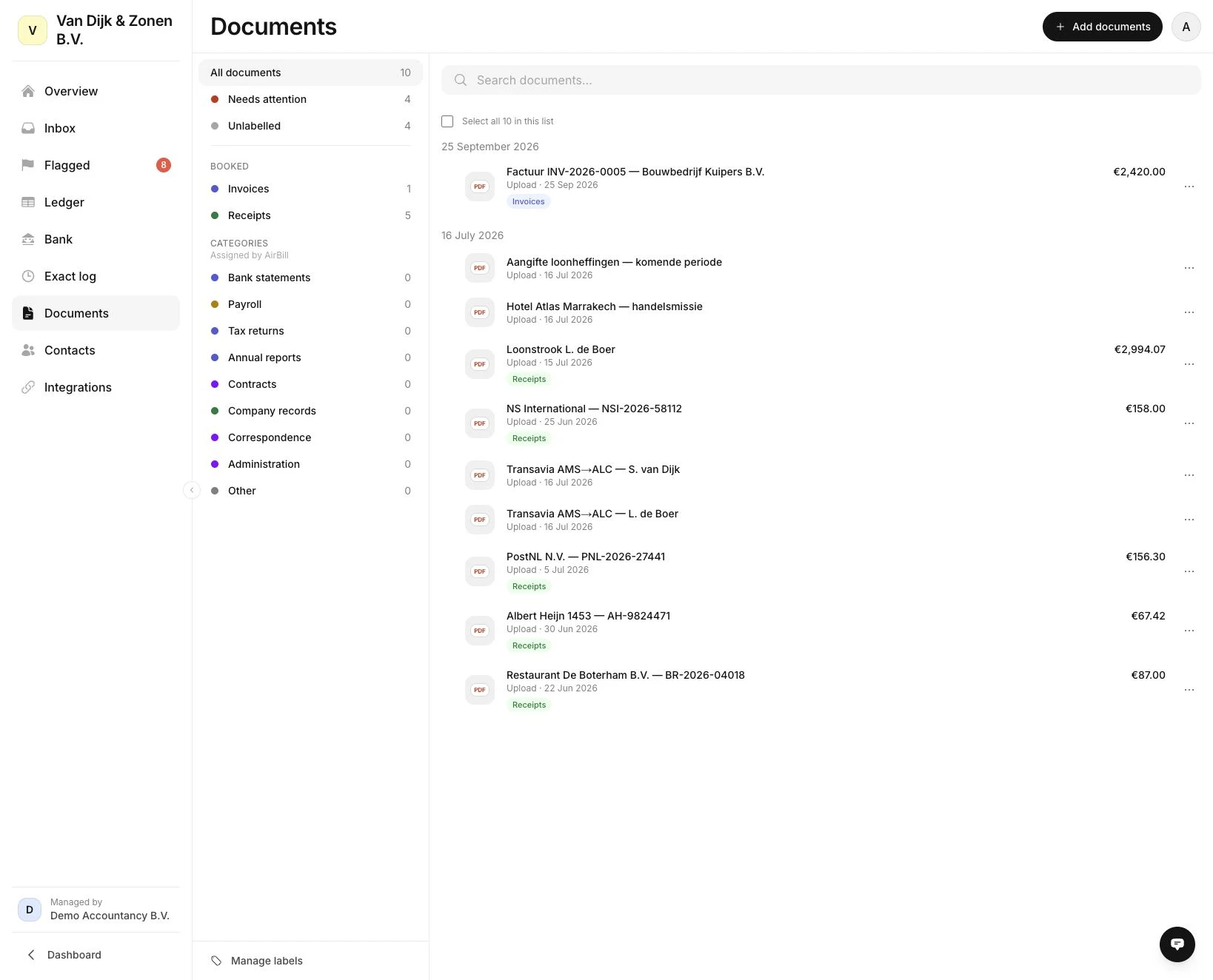
Open the client and choose Documents. Use the search field for a name, invoice number or text from a document.
The left column contains All documents, Needs attention, Unlabelled and the available labels. Check active filters if a file is missing from the list.
Inspect a document
Open a row to view the document and its details. Use the row’s options to download, rename or change labels.
Actions for retrying reading, processing again or archiving depend on the status. Read the confirmation: archiving a booked document can remove its bookkeeping entry. Keeping a file and changing a booking are different actions.
Add files
Choose Add documents and select the files. Check the status of each file; a successful upload does not mean all processing is finished.
When AirBill recognises a duplicate, it skips the duplicate upload and can open the existing document. For a failed upload, read the error before trying again.
To explain uploading in the app to your client, share the receipt guide.
View the accountant getting-started guide
Need a hand?
Ask the AirBill team through Support in the portal.