Receipts & documents1 min read
Upload a receipt
Add a photo or file so AirBill can read its details and look for the matching payment.
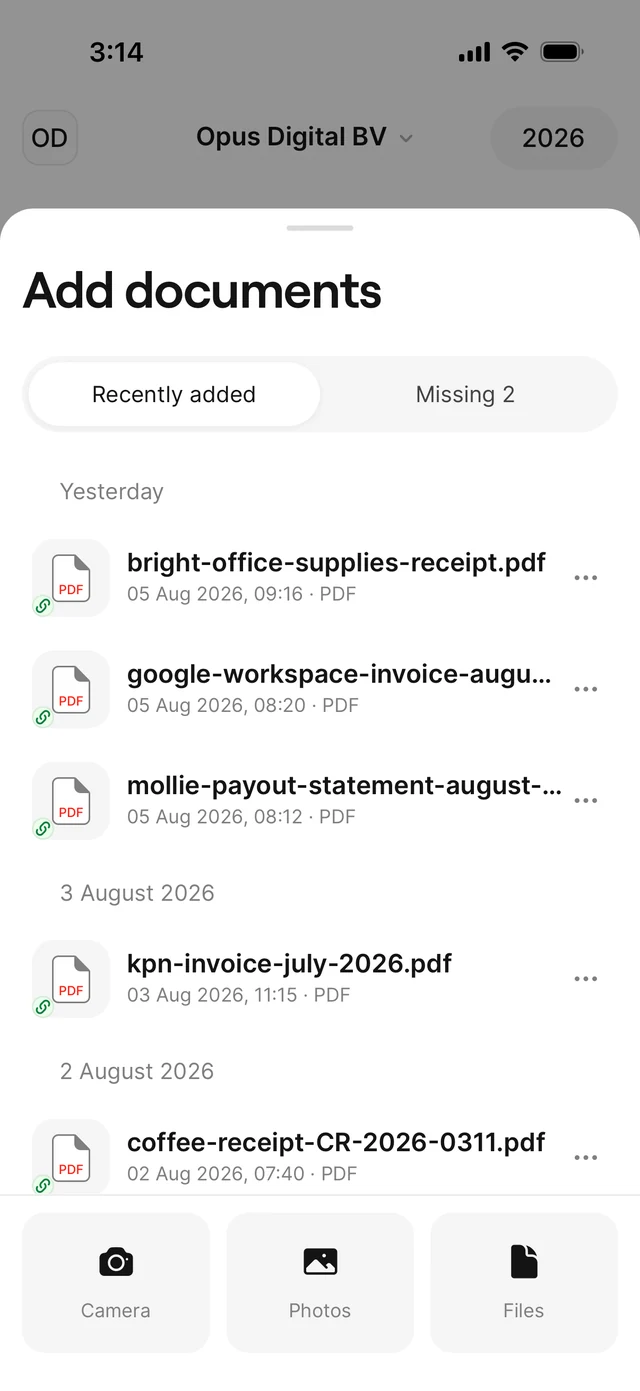
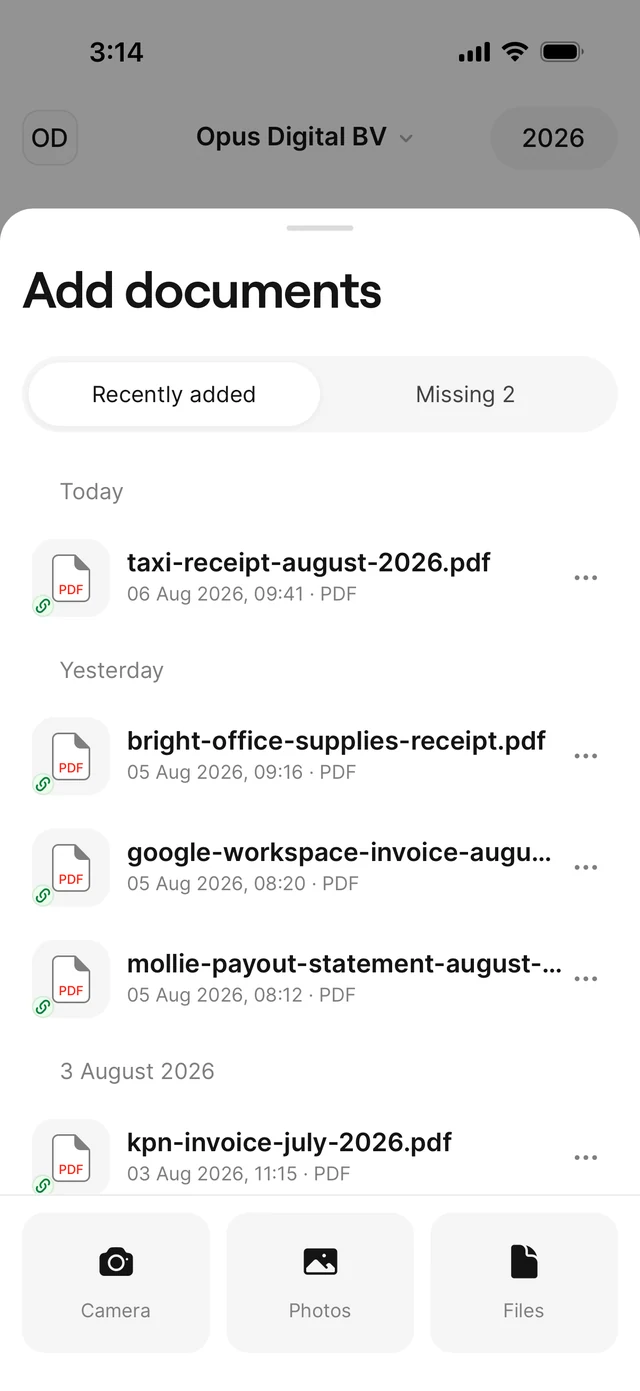
You can add receipts and purchase invoices using your camera, photo library or files.
1. Open Add Documents
Tap the plus button — camera, photo library or files, whatever is quickest.
2. Choose a receipt from Photos
Choose a clear image of the complete receipt. Check that the supplier, date, items and totals are readable before uploading.
3. Upload and process
Wait for processing, then check the recognized supplier, date, amounts and VAT against the original. Uploading a file does not guarantee that it can be read or booked.
4. Check the payment match
AirBill looks for the corresponding bank transaction and links the document when there is a match. Check the payment details; if the expected match is missing, verify bank synchronization and use the matching guide below.
Invoices by email? Also automatic.
Purchase invoices can also arrive through your personal AirBill email address or a connected email account — AirBill picks them up and processes them the same way.
View the AirBill getting-started guide
Need a hand?
Get in touch with your question about AirBill. We’re happy to help.